Blog · Guide
Community posts: write your own guide
The blog is open to players now. Anyone can post a guide, a build, a question or a screenshot, and the best ones rise with up-votes. Here is what the page does and how to write your first post.
Open Community posts Write a post
The feed
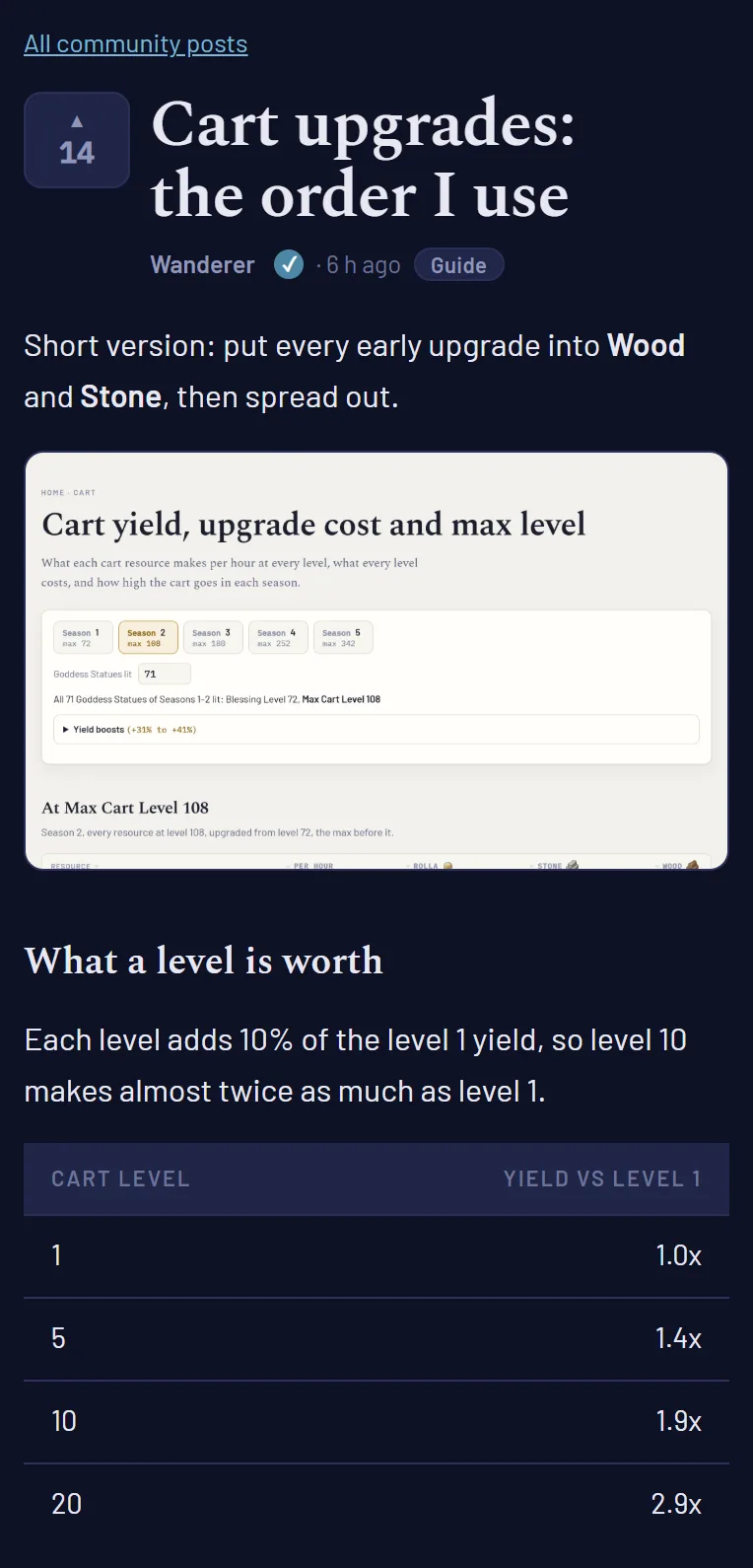
Community posts sits under the blog, with a tile on the home page and in the menu. Every post shows its votes, its author, its tags and the first lines of text, with a thumbnail when it has pictures. A check mark next to a name means the post came from that player’s own signed-in account.
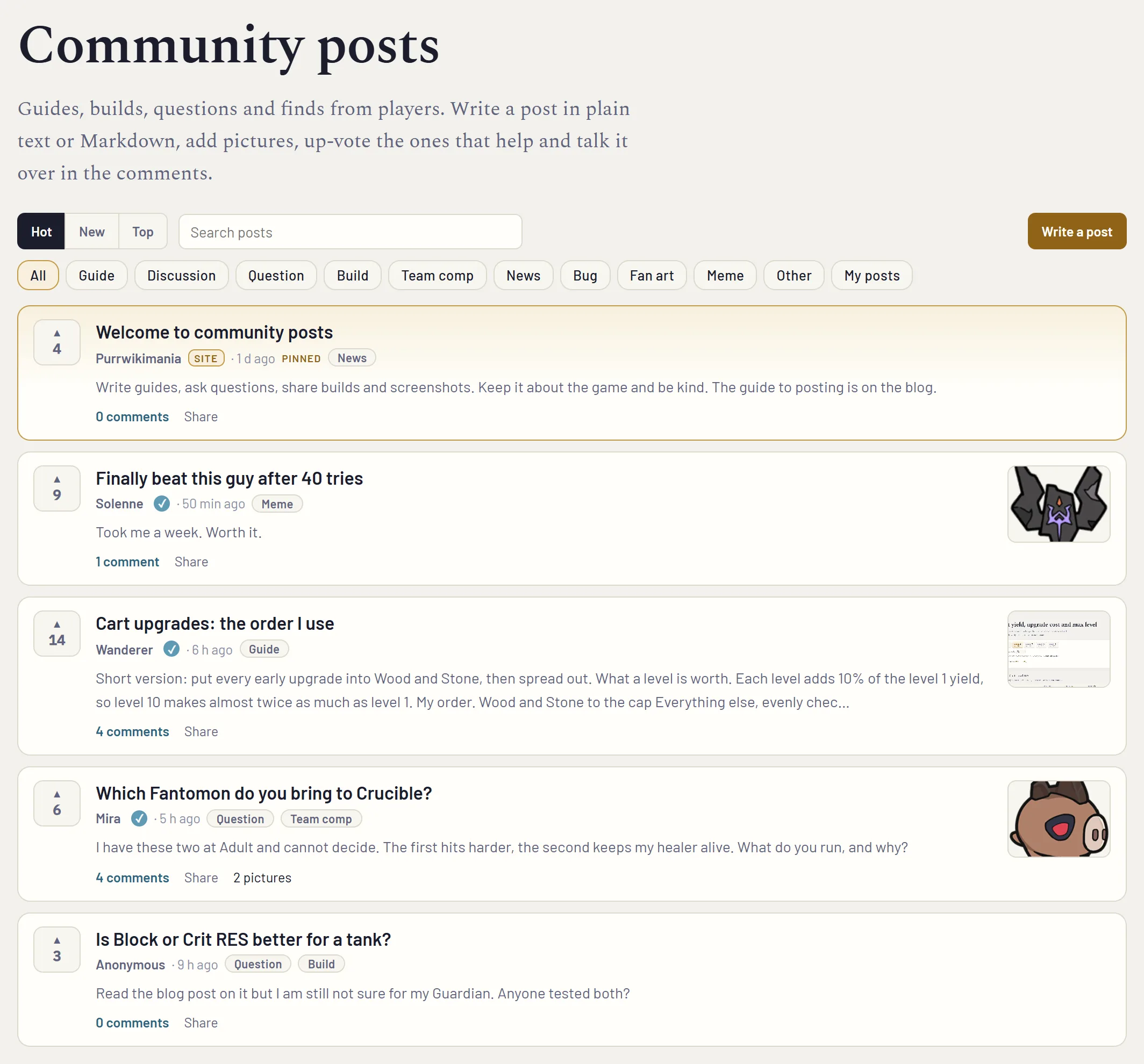
Three buttons sort the list. Hot mixes votes with age, so a good new post can pass an old one. New is newest first. Top is the most votes over today, this week, this month, this year or all time. The tags narrow it to guides, questions, builds, team comps, memes and the rest. The search box looks through titles, text and author names. Click an author’s name to see everything they wrote, and My posts shows yours.

Write your first post
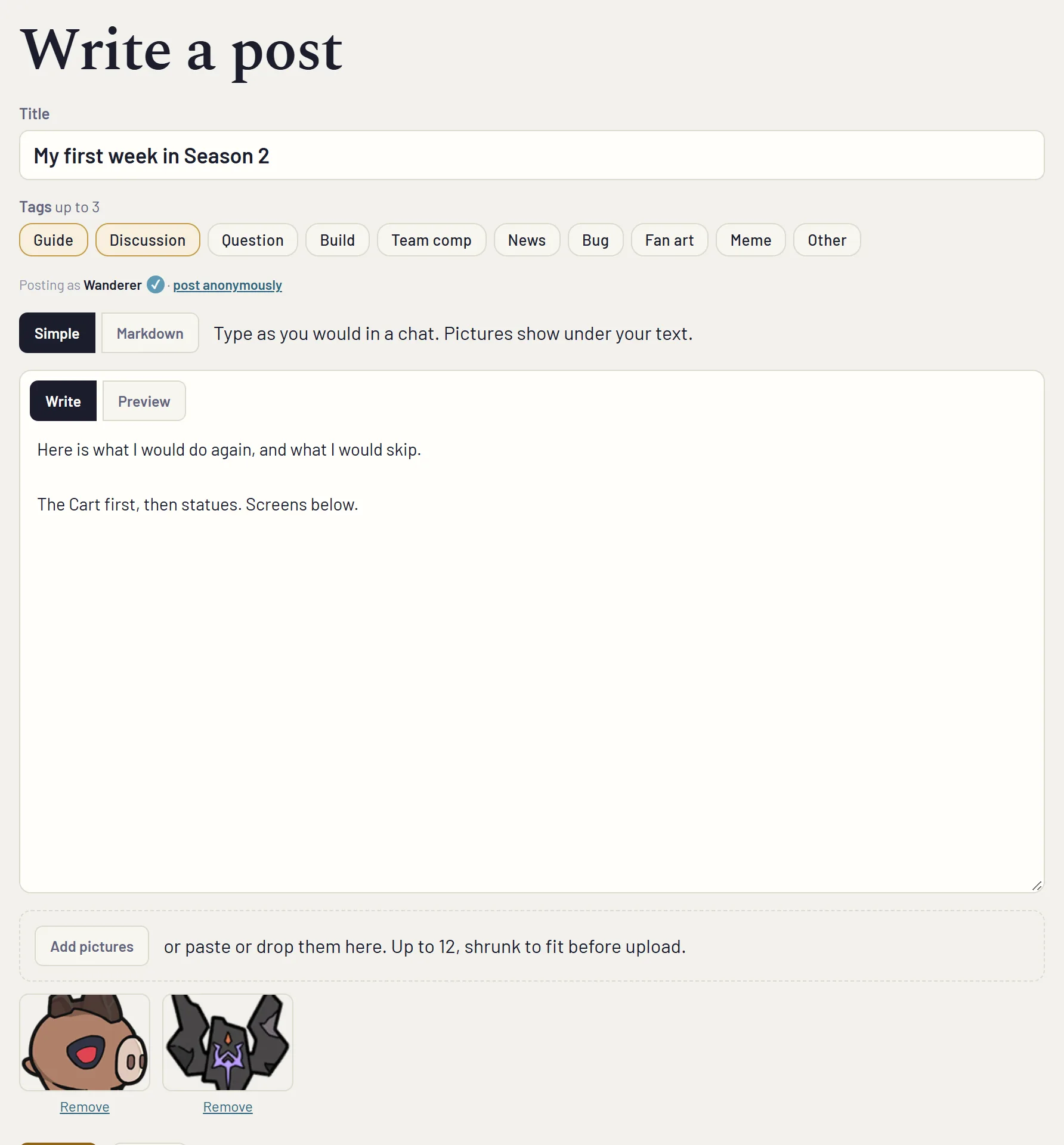
- Sign in with Google or Discord from the button at the top right, and pick the name other players see. Use your in-game name. You can post without an account too, but you can’t add pictures and editing works only from the same browser.
- Press Write a post. Give it a title and up to three tags.
- Choose Simple or Markdown (more on both below) and write.
- Add pictures with the button, or paste or drag them straight into the page.
- Check the Preview tab, then press Publish.
The page saves your draft in your browser as you type, so you can close the tab and come back to it later.
Simple or Markdown
Simple is for people who want to type the way they type in a chat. Line breaks stay where you put them, links work and your pictures appear under the text.
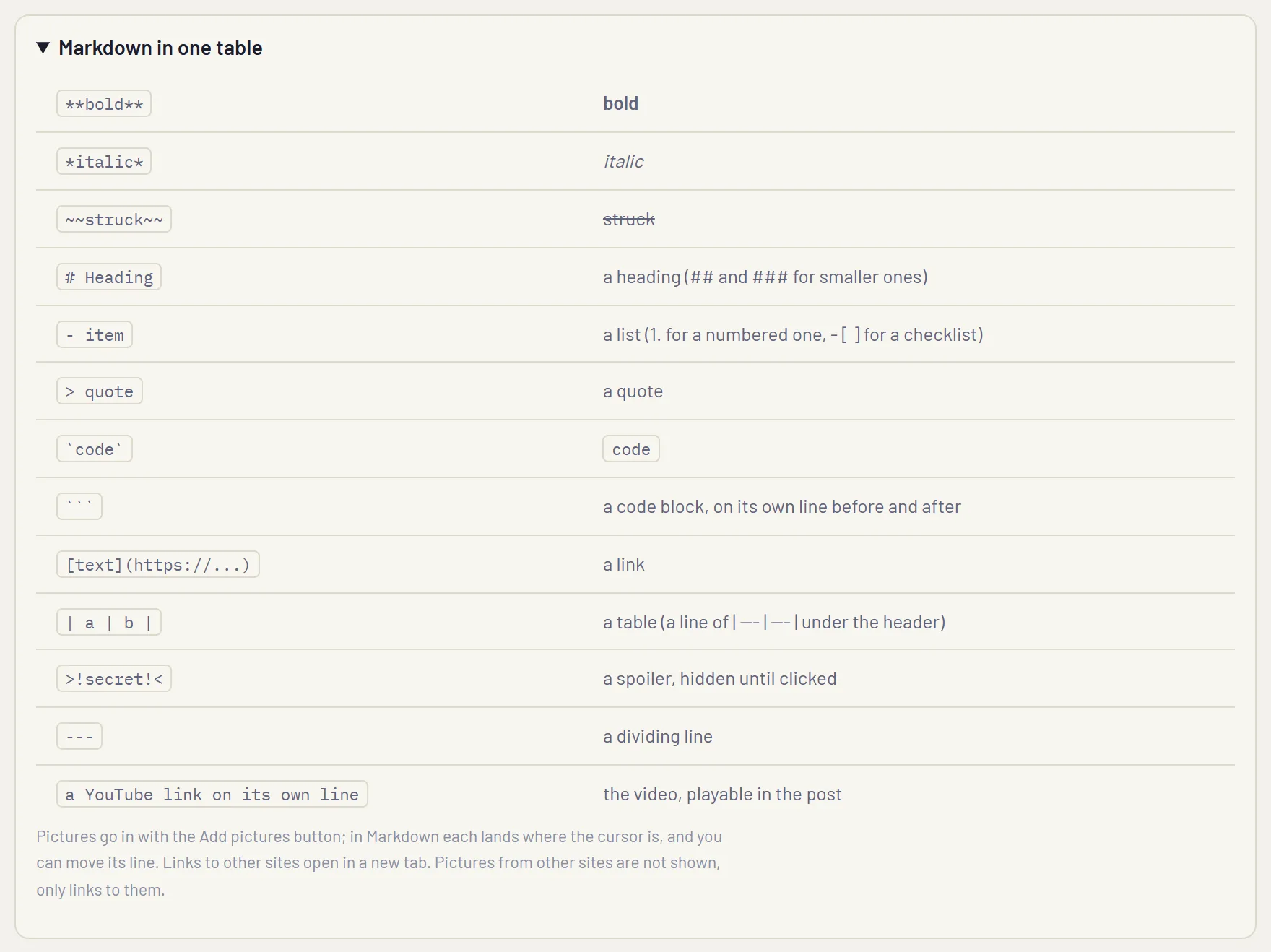
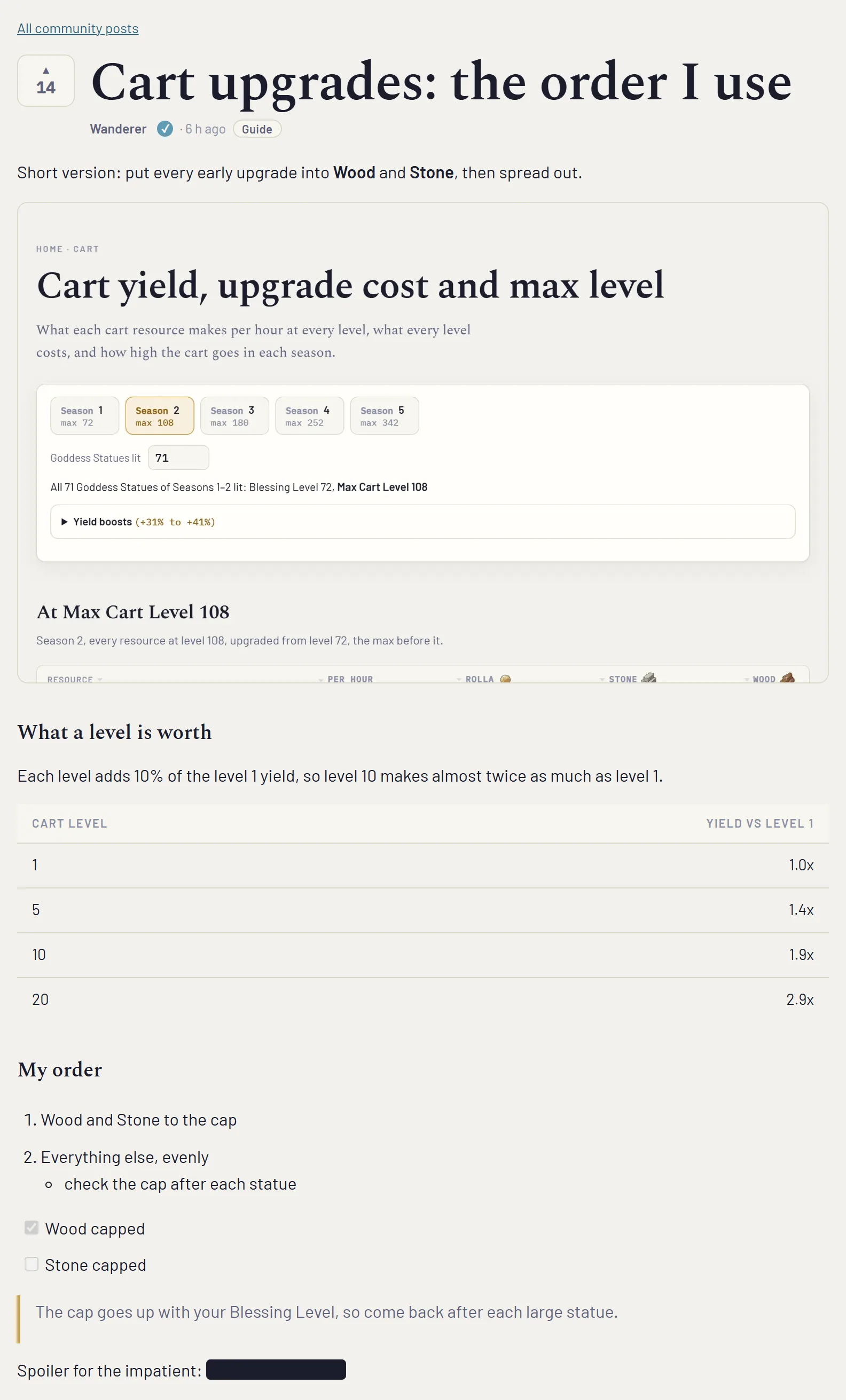
Markdown gives you a proper article: headings, bold and italic, lists, checklists, quotes, tables, code, spoilers and dividing lines. The toolbar writes the marks for you, so you don’t need to learn the syntax. Select some text and press B, or press a button with nothing selected and fill in the example it inserts. Ctrl+B, Ctrl+I and Ctrl+K work too. Pictures land where your cursor is, and each one is a line you can move.
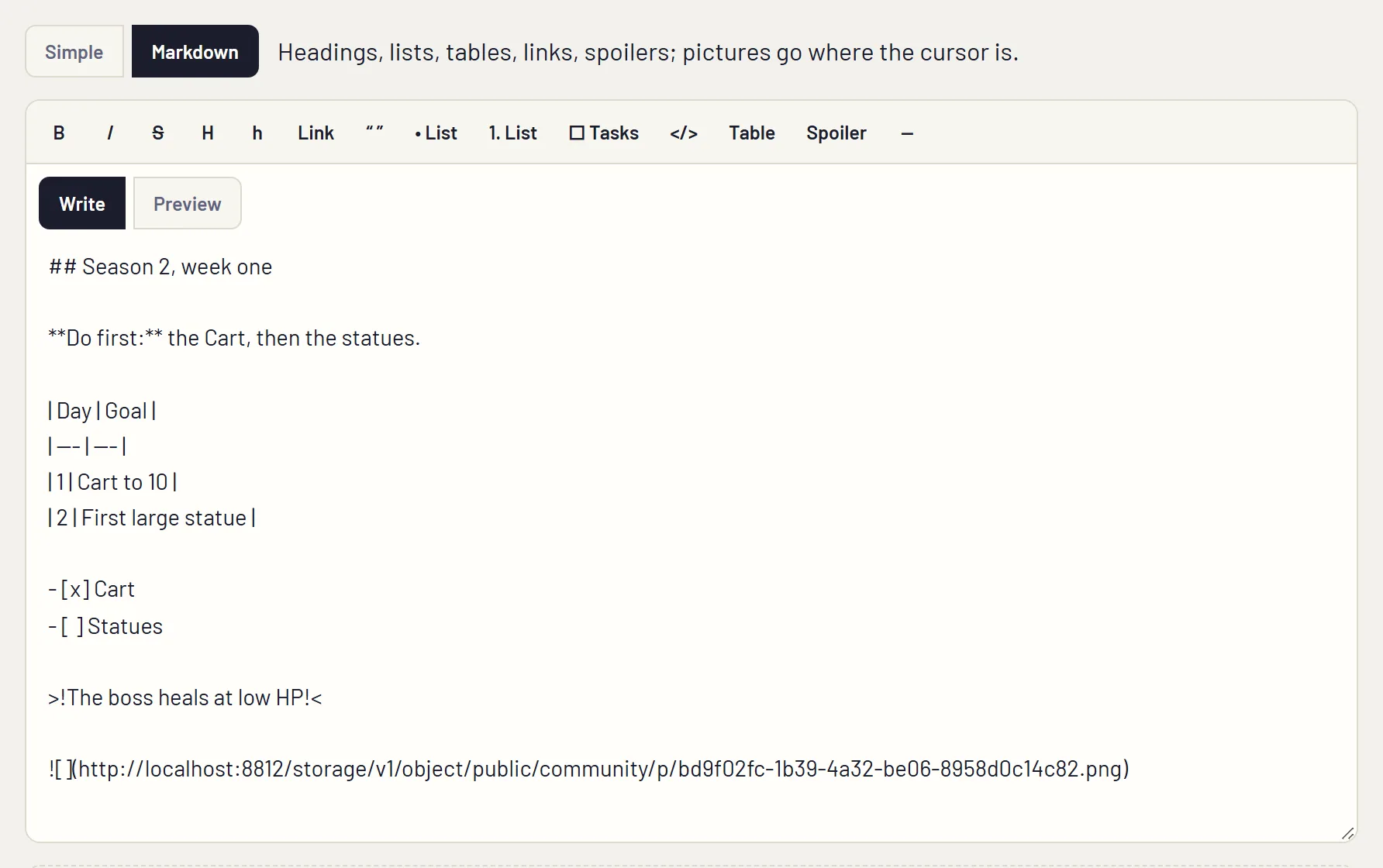
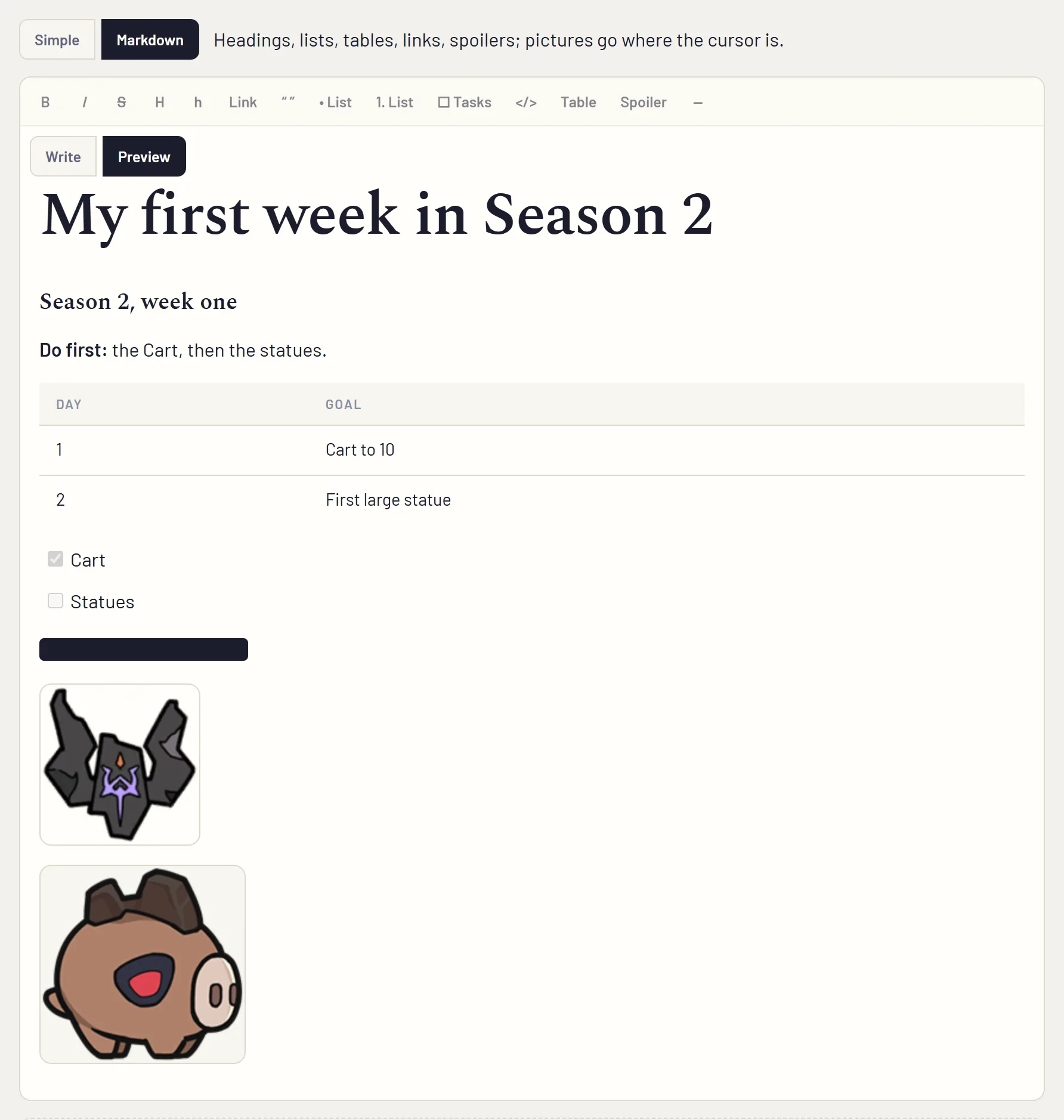
Put a YouTube link on a line of its own and the post shows the video. The Markdown in one table fold under the editor lists every mark.
Pictures
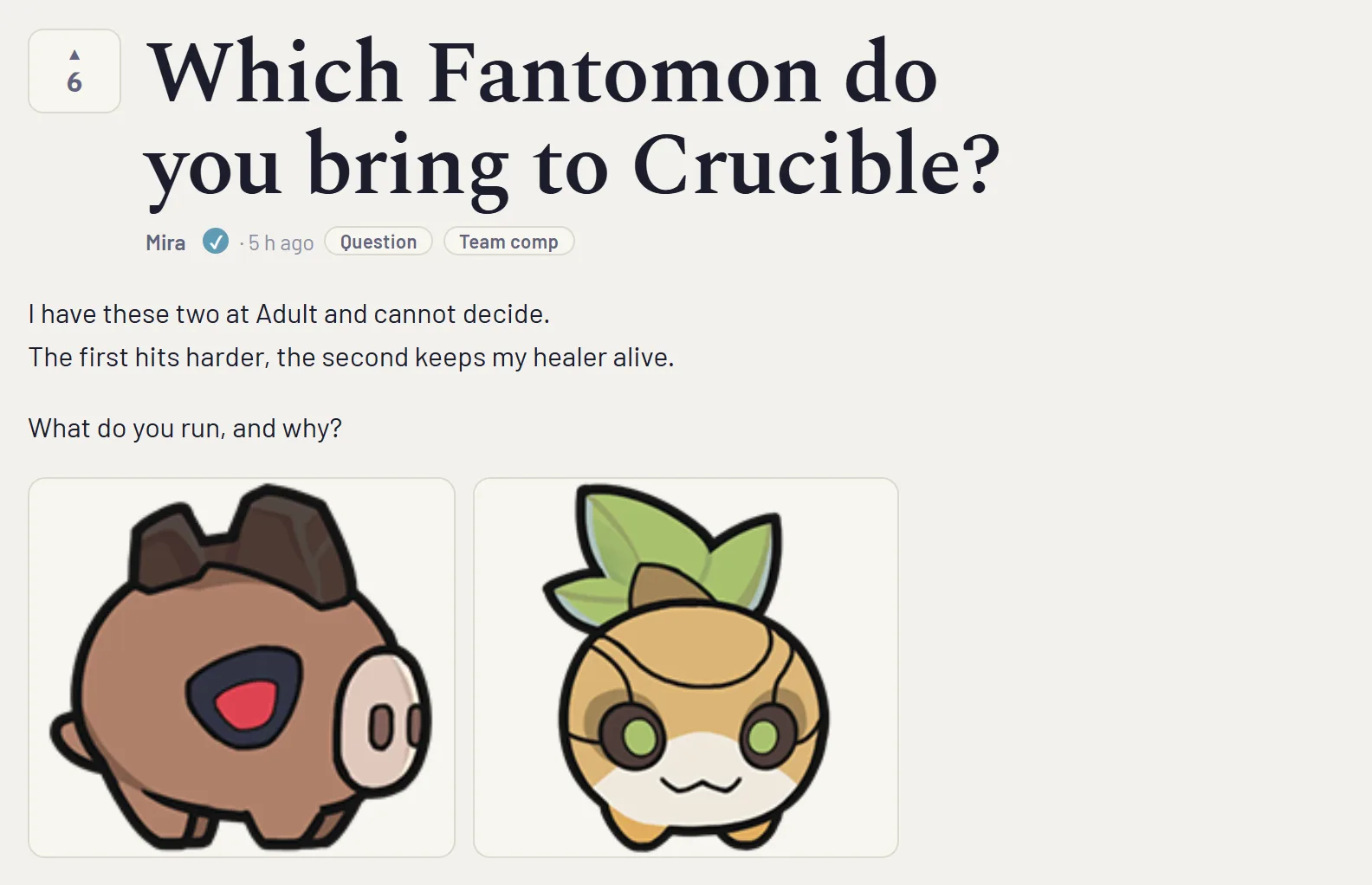
Up to twelve per post. The page shrinks a big screenshot to 1920 pixels on its long side before it uploads it. GIFs keep their animation if they are under 2 MB. Click any picture in a post to see it full size.
Reading, voting and comments
A post opens on its own page with a link you can share. Press the arrow to up-vote. Press it again to take the vote back. It counts once per account, or once per browser when you are not signed in.
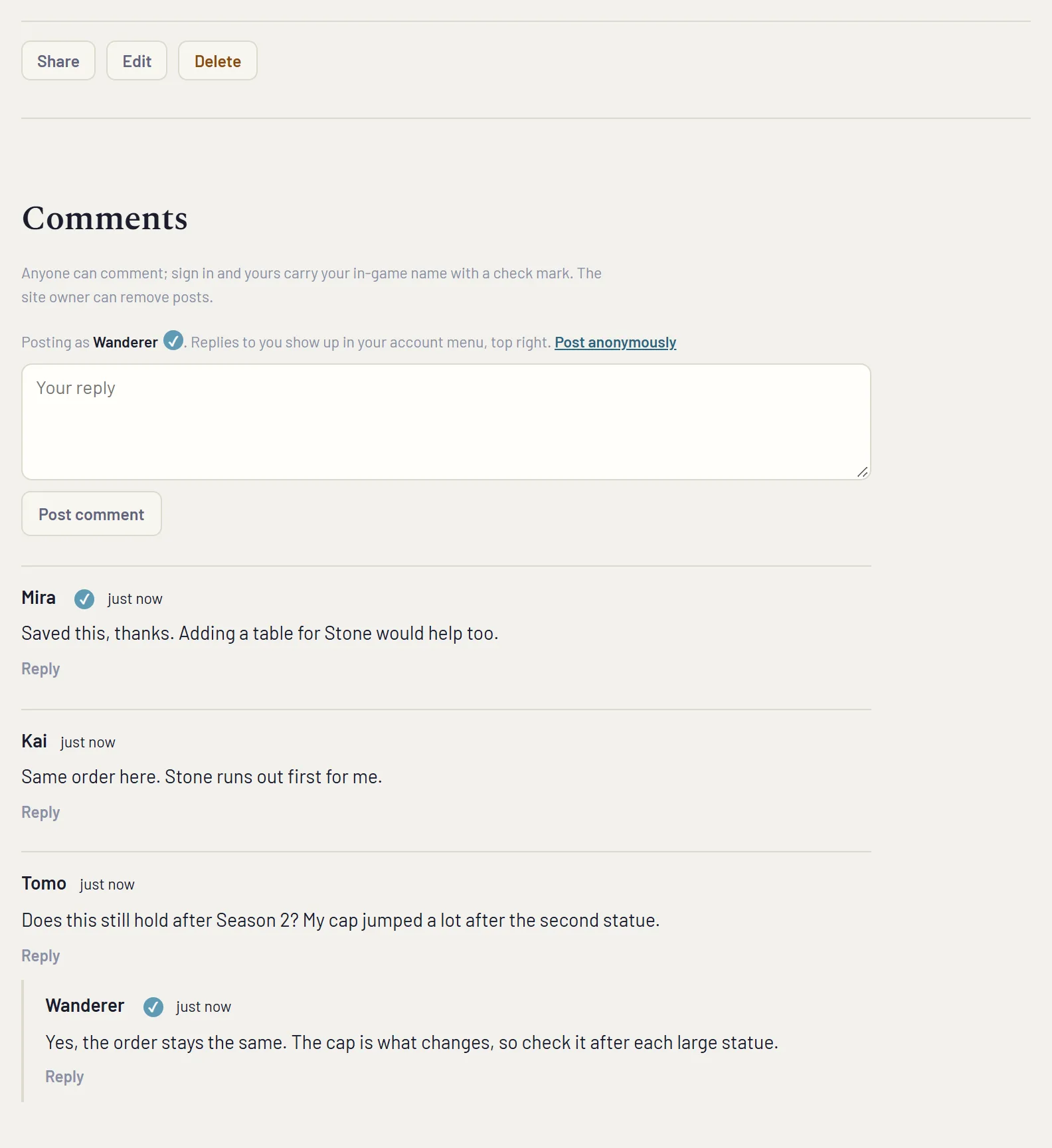
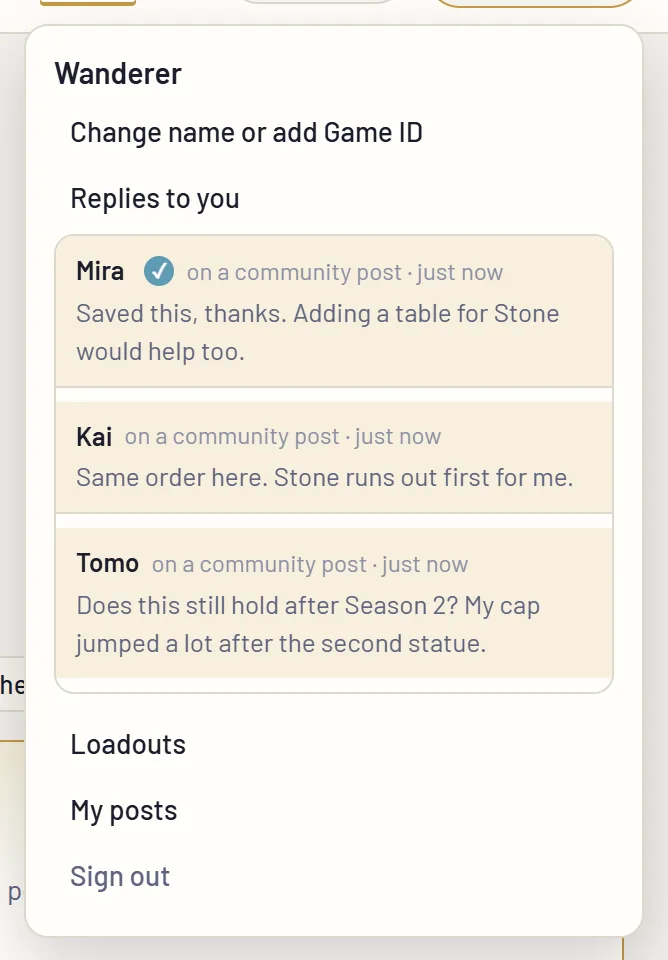
Below every post there is a comment thread. Each comment has a Reply button. When someone comments on your post or answers your comment, it shows up under Replies to you in your account menu, with a count on the button. The same menu has My posts.
Editing and deleting
Your own posts show Edit and Delete. Signed in, that works from any phone or computer where you sign in. A post written without an account gets an edit code when it goes up. The browser you used keeps it. Save it if you want to edit from somewhere else, and enter it with the Yours? button on the post. An edited post says “edited” next to its date.
House rules
Keep it about the game and be decent to each other. Spam, abuse, other people’s private details and anything illegal get removed. If you see a post like that, press Report on it and it goes to the site owner. To keep spam down, each player can post four times an hour and upload thirty pictures an hour.
On a phone
Everything above works on a phone, in light or dark mode, and a screenshot from the game can go straight from your gallery into a post.
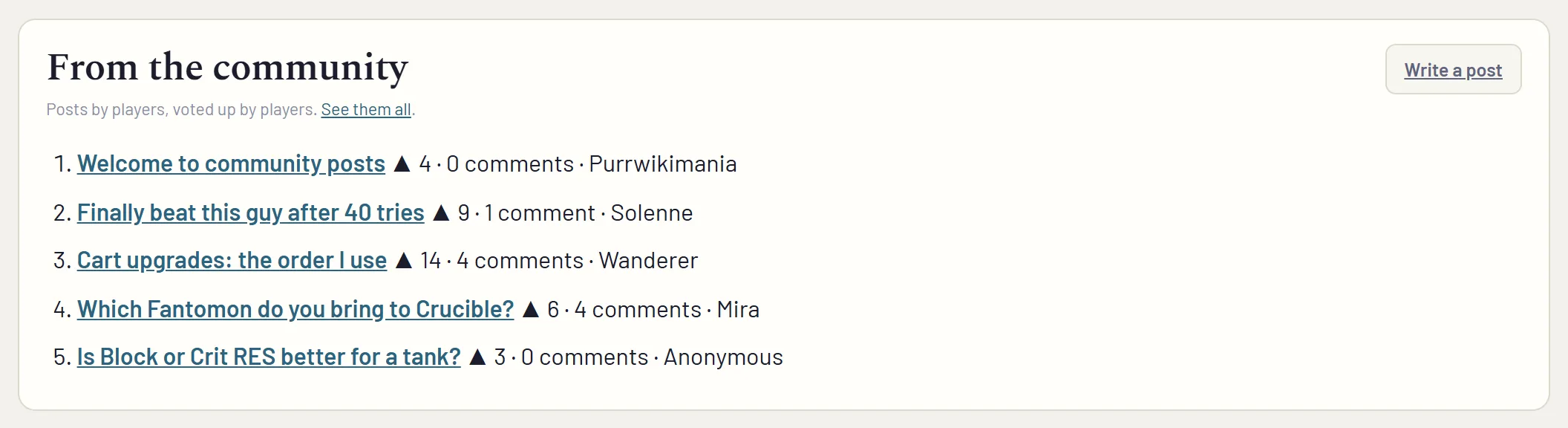
The blog index also lists the top five community posts under the site’s own articles.
The screenshots come from a test copy of the page filled with example posts and names.
Comments
Anonymous, no account needed. Say what you would build and why. The site owner can remove posts.